Panes and Windows
A window in Player 3 is a grid you build as you go, rather than a choice between fixed layouts. Player 2 gives you at most two views side by side; Player 3 lets you keep splitting, and you can open as many windows as your screens will take.
Arranging panes
Every pane carries its own controls in its header, at the right-hand end. Hover over a button to see its name.
- Split top / bottom and Split left / right divide the pane in two. Any pane can be split again, so a window holds as many views as the screen will usefully take.
- The content picker chooses what the pane shows — see What a pane can show. Panes are interchangeable: nothing is fixed to a particular spot.
- holds that pane's own settings — see The pane menu.
- Open this view in a new window opens this pane's view in a window of its own.
- Close pane closes the pane, and the space returns to its neighbour.
- Drag a pane's header onto another pane to swap the two. The layout stays put; the contents trade places, which is the quick way to promote a camera to the big pane without rebuilding the grid.
In a narrow pane the split, new-window and close buttons fold into a … menu: Split top / bottom, Split left / right, Open this view in a new window and Close pane.
Drag the divider between two panes to resize them.
Splitting, closing and changing panes can be undone with Edit ▸ Undo — see Editing, Undo and Saving.
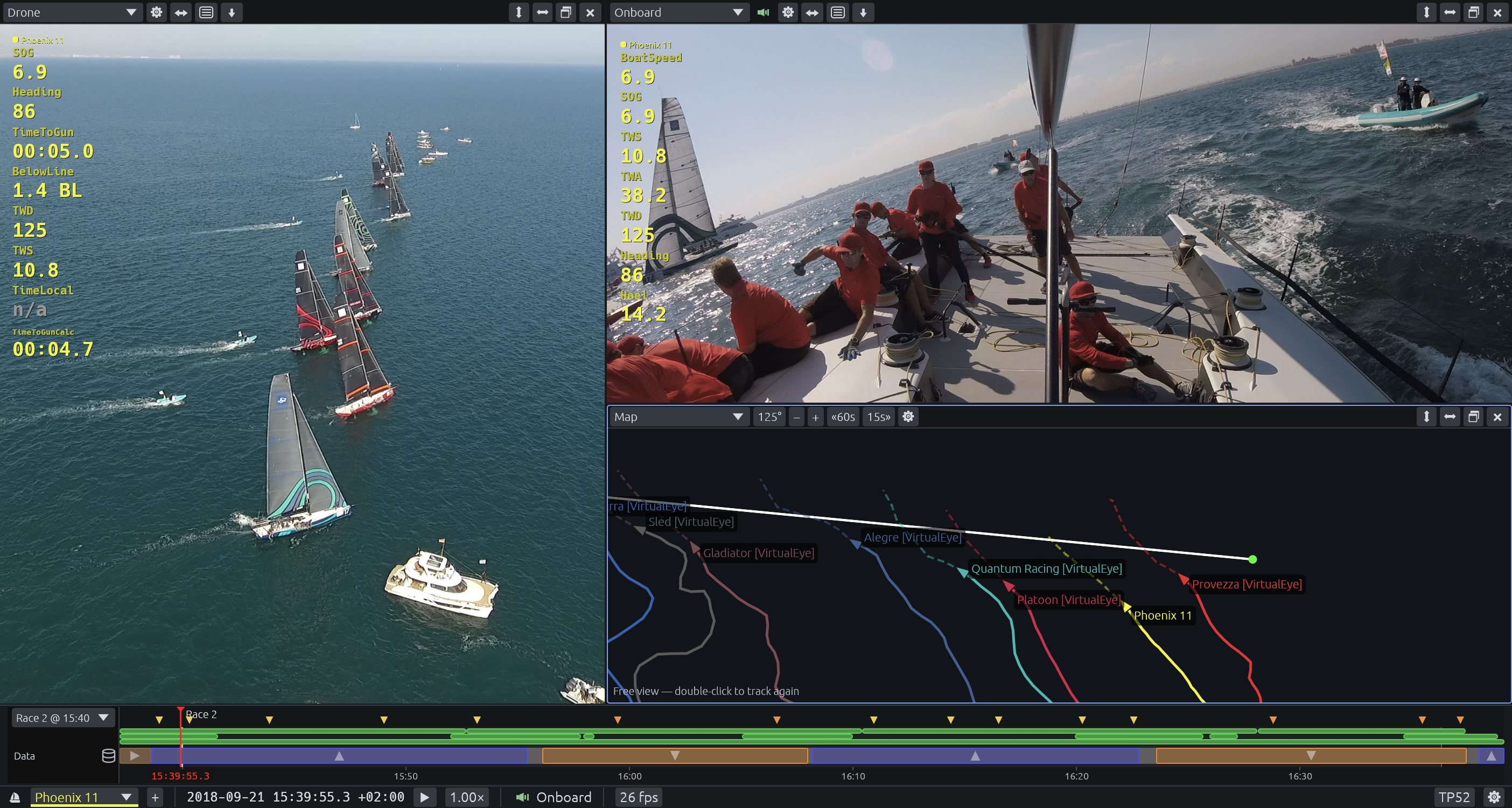
What a pane can show
- A media source — any media group in the document: video, photos, or 360 footage. In a 360 pane, drag to look around, scroll or pinch to change the field of view, and double-click to recentre.
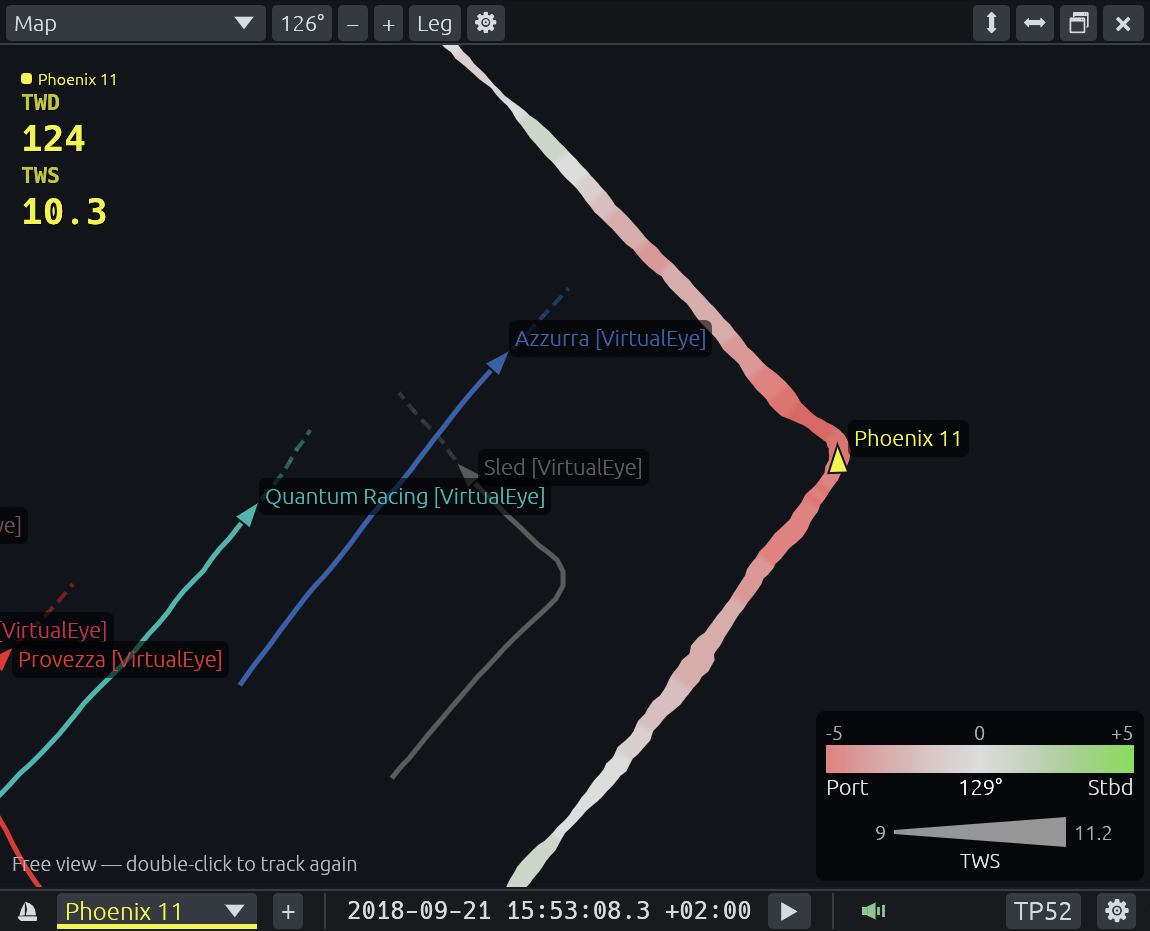
- Map — the boats' tracks, coloured by wind shift or by a metric you choose.
- Chart — a rolling strip chart of the metrics you choose, playing in step with the video.
- Number — large-figure readouts of the metrics you choose, for reading across a room.
- Comments — the document's comments.
The pane menu
The in a pane's header holds the settings for that pane only. What it offers depends on what the pane shows:
- Edit before-gun metrics and Edit after-gun metrics open the metrics dialog for the pane — see Metrics and Presets.
- Show metric overlay, on map, video and photo panes, turns the metrics overlay on and off without changing which metrics the pane shows. It affects the screen only: an exported video or photo still includes the metrics overlay.
- Picture fit, on video and photo panes: fit the whole picture in the pane, or fill the pane and crop the edges.
- Rotation, on video and photo panes: Rotate Left, Rotate Right and Rotate 180°. Rotation is saved in the document.
- Map tracking, Track colour and Track range, on map panes: what the map follows, how tracks are coloured, and which part of the day's tracks is drawn.
- Chart line, on chart panes: how the line is drawn. With Metric values set to damped, Also show the raw samples draws the recorded samples faintly under the damped line.
A map pane's track length and a chart pane's time span are set from the header itself, and move into the menu when the pane is too narrow to show them.
Media panes also have an export button () in their header — see Exporting Media with Data Overlays.
Several windows
Window ▸ New Window (⌘/Ctrl + Shift + N) opens another window, and Open this view in a new window in a pane's header opens that pane's view in a window of its own. All windows play in step: seeking or playing in one moves them all.
Each window keeps its own arrangement of panes. Put a window on another screen and make it full screen from the View menu (⌃ + ⌘ + F on macOS, F11 on Windows) for a presentation setup. Multi-Window and Multi-Screen has suggestions for laying out a debrief across screens.
Showing different boats in different windows. By default every window shows the same boats. To give each window its own boat selection — each boat's numbers over its own onboard video, for example — turn off Link boat selection across windows in the Settings window.
Your windows, with their positions and pane layouts, come back the next time you open the app. They belong to the current workspace, so you can keep different window setups for different jobs and switch between them. When a workspace is opened on a computer with a different screen arrangement, any window that would be off screen is moved onto one that is connected.
On macOS, closing the last window does not quit the player: ⌘ + N, ⌘ + O or a click on the Dock icon brings a window back, and ⌘ + Q quits.